
How to save apartment searches and set alerts on RentCafe
Summary
To save a search on RentCafe — like “a two-bedroom apartment in Austin, TX” — search for the apartment you want, click “Save search” at the bottom of the page on mobile or in the upper right corner on desktop and create an account to wrap it up. This way, you’ll get email alerts for new listings that match your preferences, as well as updates on availability.
How can I save a search on RentCafe?
1. Make a search
Open RentCafe.com and type in your preferred location and any other relevant details in the search box. If necessary, add filters to narrow your search.
2. Click “Save search”
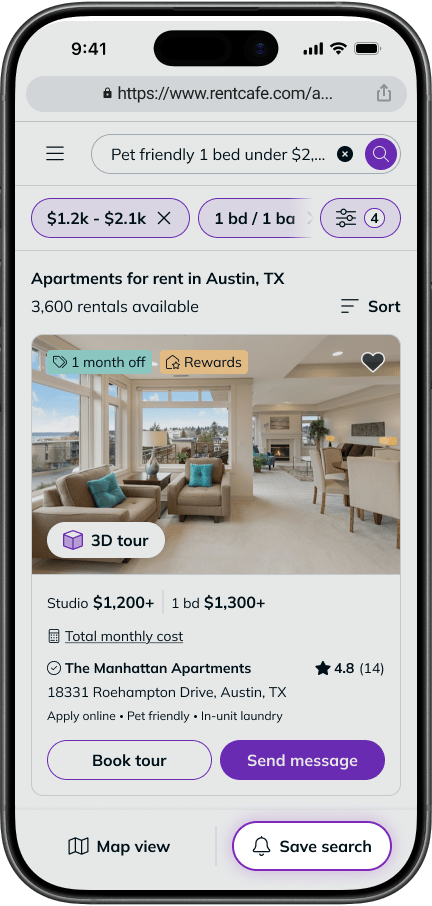
On the results page, at the bottom of your phone screen, you will see the “Save search” button. Click the button to save your search.
3. Log in or create an account
To save a search and get alerts, you’ll need to log in or create an account. You’ll receive email notifications whenever a new property matching your search criteria is posted. You’ll also be the first to know about availability updates at the properties in your search results.
4. Run a saved search anytime
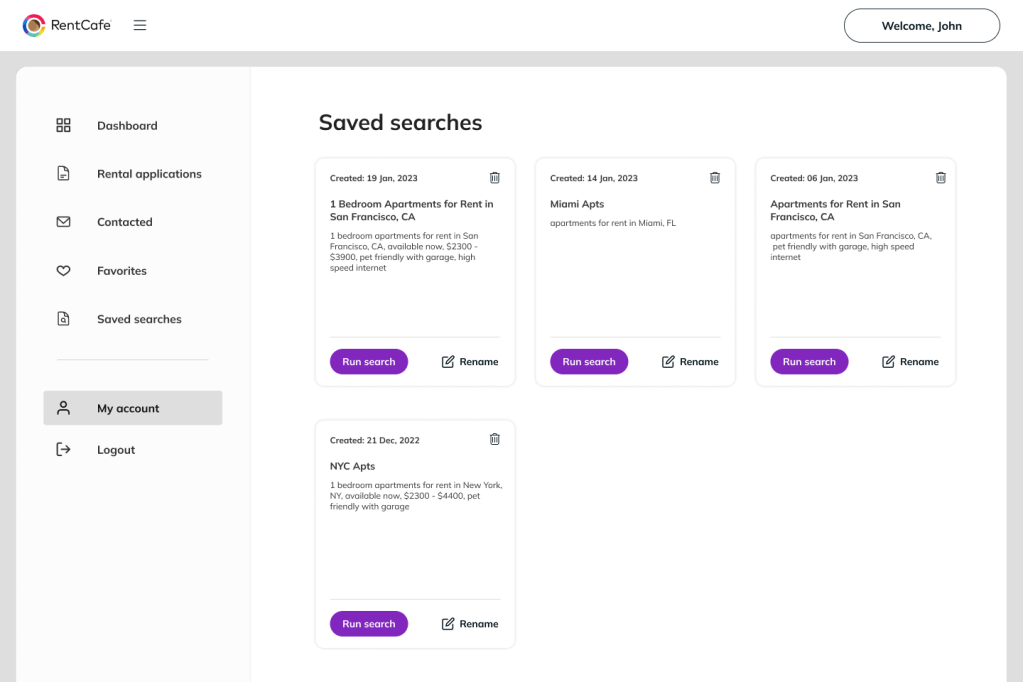
You can find, rename, run and delete older saved searches anytime from “Saved searches” in the “My account” dashboard or from the main menu when logged in.
1. Make a search
Open RentCafe.com and type in your preferred location and any other relevant details in the search box. If necessary, add filters to narrow your search.
2. Click “Save search”
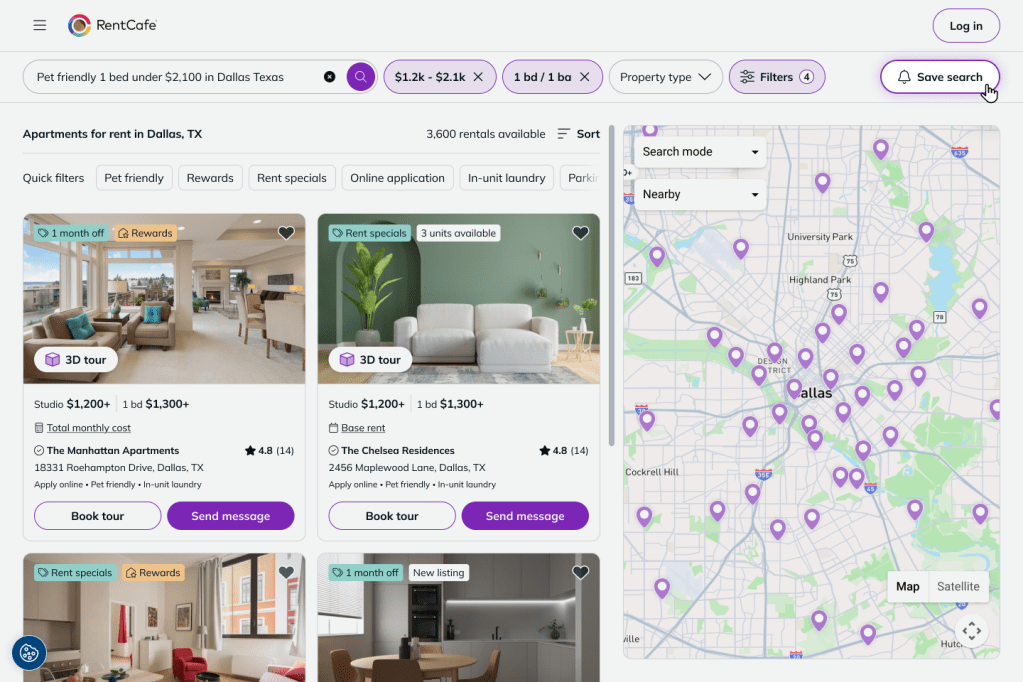
On the results page, in the upper right corner, you will see the “Save search” button. Click the button to save your search.
3. Log in or create an account
To save a search and get alerts, you’ll need to log in or create an account. You’ll receive email notifications whenever a new property matching your search criteria is posted. You’ll also be the first to know about availability updates at the properties in your search results.
4. Run a saved search anytime
You can find, rename, run and delete older saved searches anytime from “Saved searches” in the “My account” dashboard or from the main menu when logged in.
How can I add a property to my favorites list?
Another way to get alerts and stay up to date with properties matching your preferences is by creating a favorites list. When you click on the heart icon in the upper right corner of a listing, you add it to your favorites list. This means you’ll be receiving email alerts when new units in the property become available or there are updates. For this, you need to log in or create a RentCafe account.
You can find and review your favorited properties anytime under “Favorites” in the “My account” dashboard.
How can I stay up to date on the properties I’m interested in?
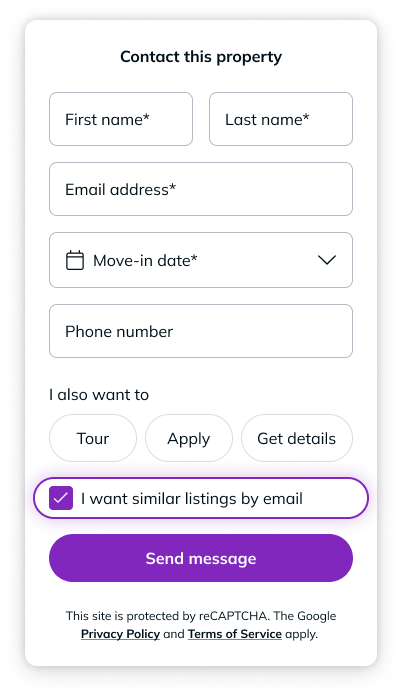
A third way to make sure you have new listings and updates in your inbox is when you reach out to a property. When you use the form for contacting a property, scheduling a tour or applying, you can also check the box and opt in to receive emails with similar listings.
How can I cancel notifications for saved searches on RentCafe?
If you want to cancel some or all notifications, you can do that anytime by accessing “Notification settings” in your “My account” dashboard and opt out.
Log in to your RentCafe account and save your first search.
FAQ
Yes. You can browse listings without an account, but you’ll need to log in or create one to save your search and receive alerts about new listings or availability updates.
You can access all your saved searches anytime from the “Saved searches” section in your “My account” dashboard or through the main menu after logging in.
You’ll receive email notifications whenever there are updates that match your criteria, such as new listings or unit availability changes.
Yes. You can save as many searches as you like, making it easy to track different locations, price ranges or apartment features at the same time.
Saving a search alerts you about new listings and updates that match your criteria, while adding a property to favorites lets you track updates (like availability) for a specific property.