
Can I search for apartments by zip code?
Summary
Type a zip code into the search bar on RentCafe.com and you’ll see all available apartments in that area right away. You can also browse zip codes within any city if you’re still deciding which neighborhood fits you best.
Searching by zip code is one of the fastest ways to zero in on apartments near a specific school, workplace or part of town you already know you like. On RentCafe, you can do this in two ways: search directly by zip code or browse available zip codes within a city. Once your results are in, you can filter by price, bedroom count, amenities and more — or pull up the map to explore the area visually.
How to search by zip code on RentCafe
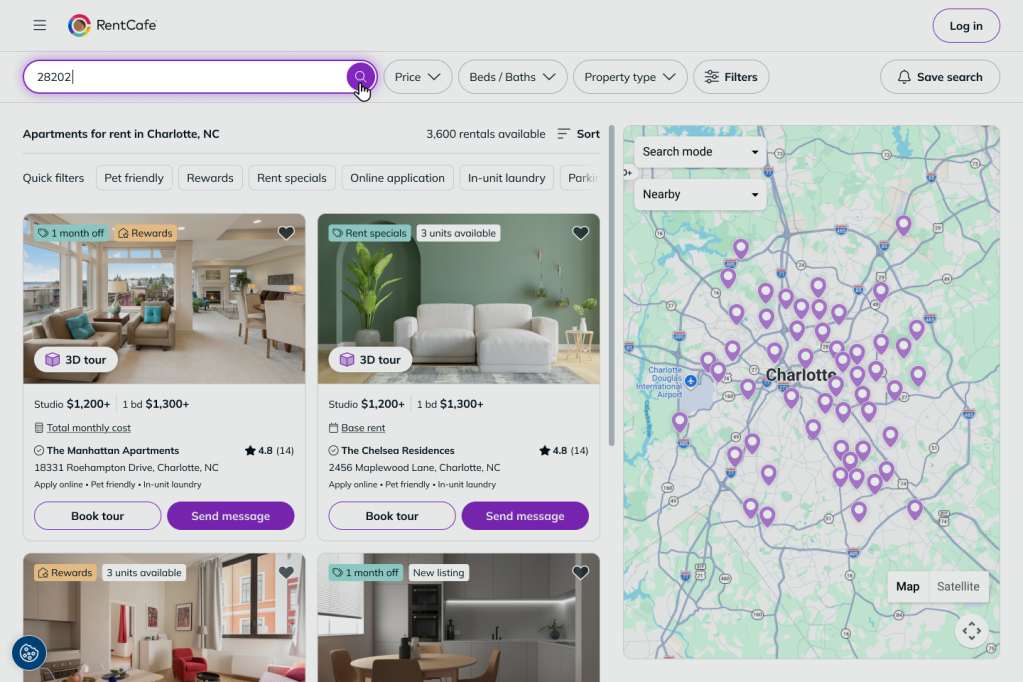
The fastest way to search by zip code is to type it directly into the search bar on the RentCafe homepage.
- Go to RentCafe.com. You’ll see the search bar at the top of the homepage — it will give you suggestions such as “pet-friendly in Austin under 1.5k w/ parking.”
- Type your zip code into the search bar and press “Enter” or click the search icon.
- RentCafe returns a list of apartments available in that zip code, along with a map showing where each property is located.
The search bar also accepts neighborhood names, city names and natural language descriptions like “pet-friendly 1-bedroom in 34689.” Zip codes just give you the most precise geographic result when you already know the area you want.
How to browse apartments by zip code within a city
If you’re open to a city but want to narrow things down by neighborhood, you can browse RentCafe’s zip code listings for that city. This is useful when you’re still exploring which part of town works for your commute or budget.
Browse by zip code list
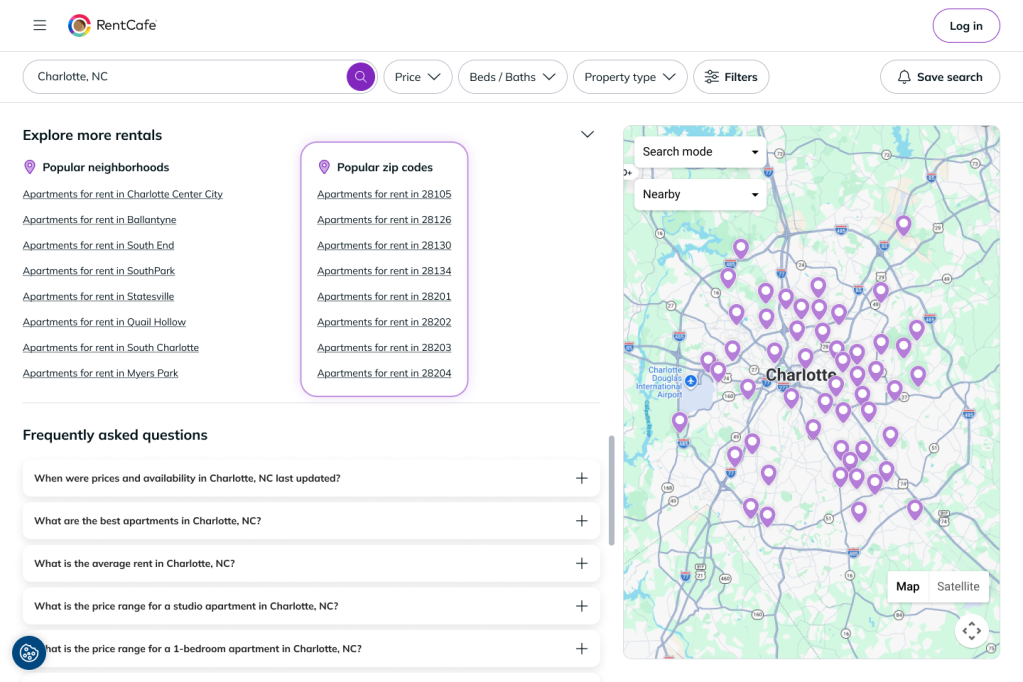
- Search for the city you’re interested in (for example, Charlotte, NC).
- On the city results page, scroll down to the bottom. You’ll find a section listing apartments organized by zip code.
- Click any zip code to see all available apartments in that specific area.
Natural language search
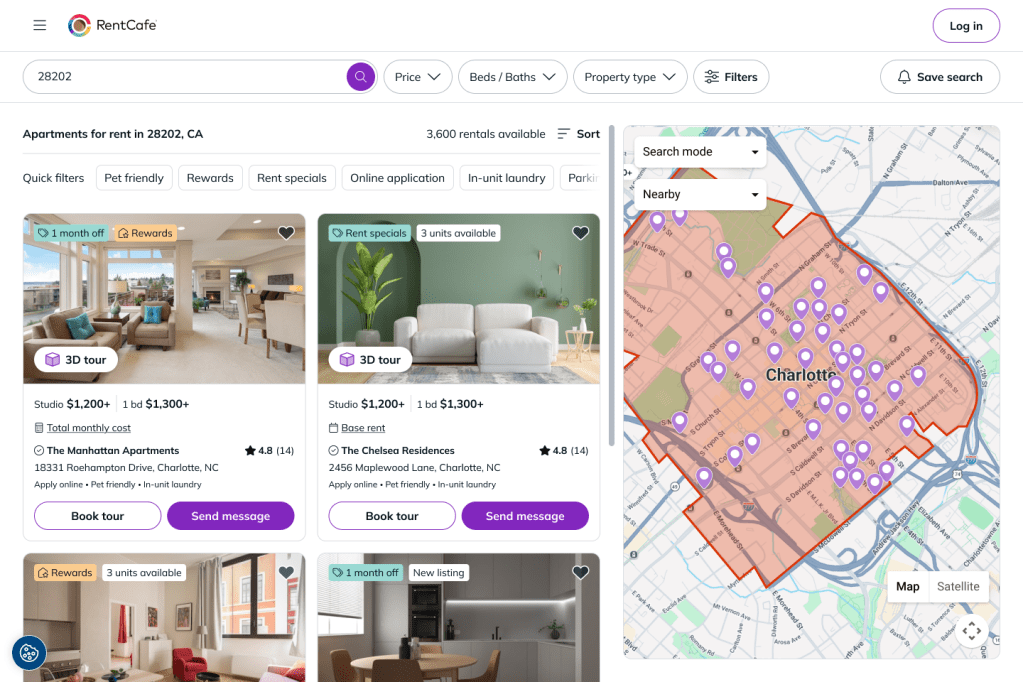
Type a plain-language description that includes one or more zip codes, like “studios near 28202 and 28203,” and RentCafe will return matching apartments across all specified areas.
Map view
Select “Search mode” from the map to switch to zip code browsing. The map will highlight available zip codes across the city, allowing you to click on one or multiple zip codes at once to see all available apartments in those areas.
Ren
Use RentCafe’s Ren (formerly AI Mode and currently available nationwide) to describe what you’re looking for in plain language, including the areas or zip codes you’re interested in and it will return matching apartments across all of them at once.
How to refine your results after searching by zip code
Once your zip code results are showing, you have several ways to narrow down the list:
Filter by price, beds, baths, property type and more
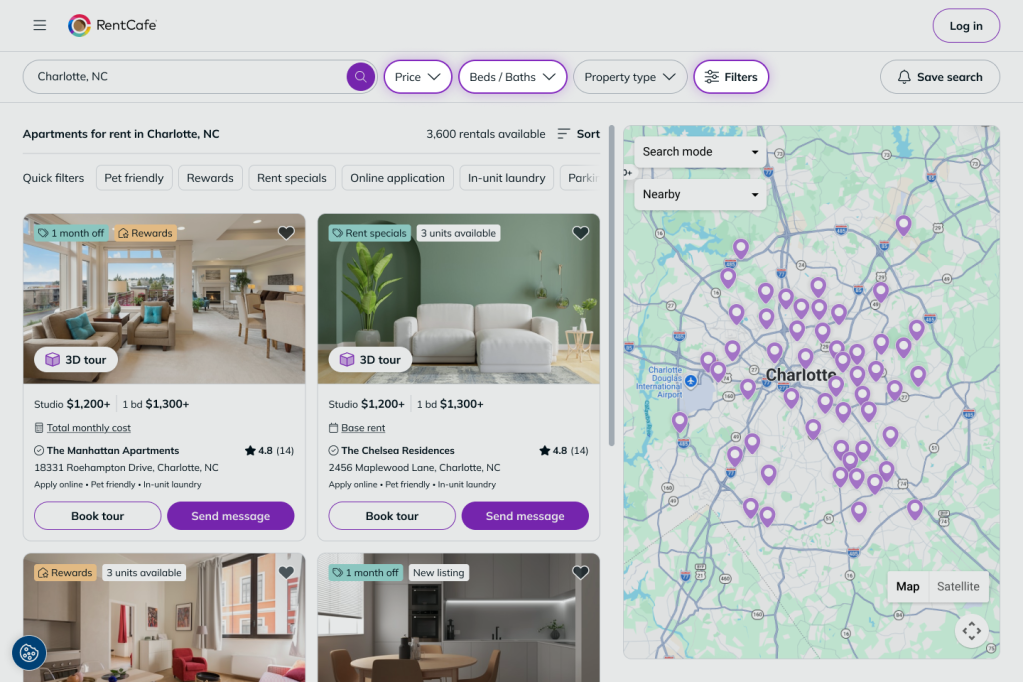
At the top of the results page, you’ll see filter buttons for “Price,” “Beds/Baths” and “Property Type.” Click any of these to set your range. For more specific filters — like pet policy, parking or amenities — click the Filters button to open the full filter panel.
Use the map to explore the area
Switch to map view to see exactly where each apartment sits within the zip code. You can zoom in and out, pan around and click individual listings to see pricing and photos without leaving the map. This is helpful when proximity to a specific street, transit stop, or landmark matters to you.
Save your search
If you’re not ready to decide yet, click “Save search” at the top of the results page. RentCafe will send you email updates whenever new apartments become available in that zip code — so you don’t have to keep checking back manually.
What to do if no apartments show up for your zip code
If your zip code search returns no results, try these options:
- Double-check the zip code. A single digit off will pull results for a completely different area.
- Search for the city or neighborhood name instead, then browse to your preferred zip code from the results page.
- Clear any filters that might be excluding listings — filters for price range, pet policy, or availability can sometimes reduce results to zero.
- Save your search so you’re notified when new listings are added to that zip code.
Ready to find your next happy place? Try these filters on RentCafe.com and see what’s available.
FAQ
A: Yes. The search bar on the RentCafe mobile app works the same way as on the website. Type a zip code and the app returns apartments in that area. You can apply filters and switch to map view directly from your phone.
A: Yes — RentCafe supports searching across multiple zip codes at once. You can do this through natural language search, filters, map view or Ren. Simply include multiple zip codes in your search query or use map view to browse across neighboring zip codes at the same time.
A: Search by zip code first, then switch to map view. From there, you can zoom out to see apartments in neighboring areas or adjust your location search slightly to a nearby zip code or neighborhood name.
A: Yes. After running your search, click “Save search” at the top of the results page. RentCafe will email you whenever new apartments that match your criteria are added to that zip code.
A: Search by the city or neighborhood name instead. Once you see results, you can use the map to explore the area and identify which zip codes have the most apartments that fit what you’re looking for.