
How do I search for apartments on RentCafe?
Summary
- You can search by city, ZIP code, neighborhood, property name, or a natural-language description.
- Use natural language search (NLS) to describe exactly what you want.
- Apply filters to refine results by price, bedrooms, amenities and move-in date.
- Switch between list and map view to compare or locate rental properties.
- You don’t need an account to search, but you do need one to save listings or apply.
To search for apartments for rent on RentCafe, go to RentCafe.com and enter a city, ZIP code, neighborhood, property name, or a plain-language description like “2-bedroom pet-friendly apartment in Austin.”
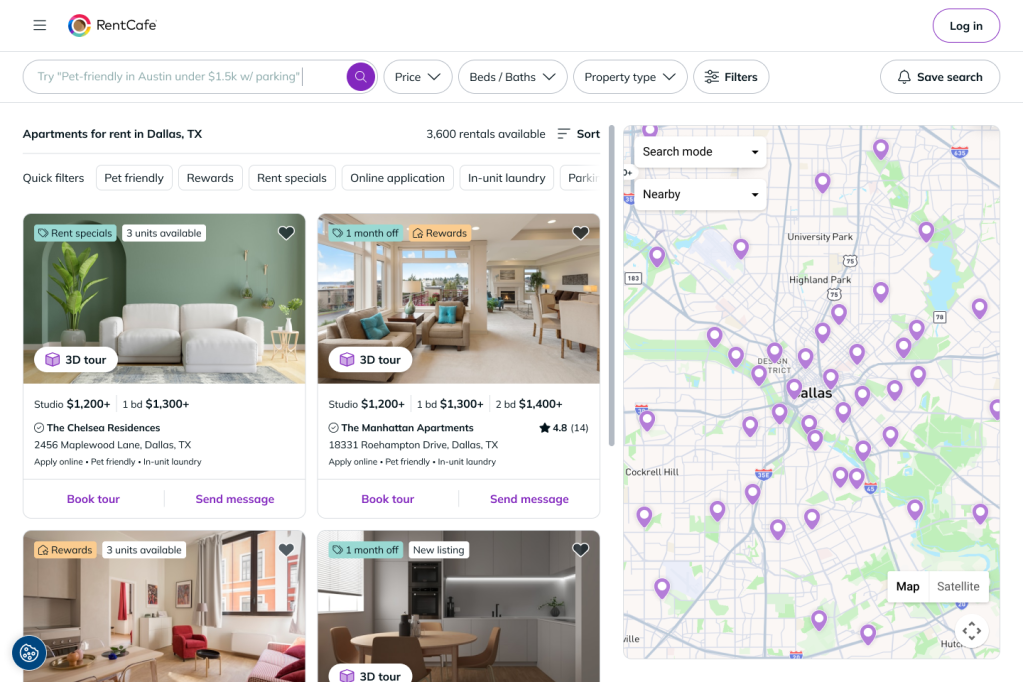
Use the filters on the results page to narrow options by price, bedrooms, amenities, or move-in date. You can switch between list and map views to compare rental properties. No account is required to search.
This article focuses only on searching. For applying or account help, see related articles below.
Here is a step-by-step guide to searching for apartments on RentCafe, from entering your first query to reviewing listings and availability.
1. How do I start searching on RentCafe?
Go to www.rentcafe.com and use the search bar at the top of the page.
You can enter:
- A city (e.g. Austin, TX)
- A zip code (e.g. 78704)
- A neighborhood (e.g. Clarksville)
- A specific property name
- Or a full description of what you want (e.g. “2-bed pet-friendly apartment in Austin”)
Searching on mobile:
The experience is the same on mobile browsers.
After results load, tap the “Filters” button at the top of the screen, choose your preferred options and then tap “View properties” to update results. You may also sort rental listings by price or rating.
2. How do I use natural language search on RentCafe?
The natural language search (NLS) feature on RentCafe is the simplest way to search. It lets you search using everyday language instead of manually selecting filters.

For example:
- “1-bedroom apartment in Miami with a pool”
- “3-bed townhome in Dallas that allows dogs”
- “Studio in Seattle available next month under $2,000”
When you search this way, RentCafe automatically:
- Identifies your location
- Applies bedroom and bathroom filters
- Selects amenities like pet-friendly or pool
- Recognizes price limits
You’ll see results that match your request, with the relevant filters already selected. You can always adjust those filters afterward if you want to expand or narrow your results.
Tip: If your results feel too limited, remove one detail at a time. For example, try searching without the price cap or without the amenity requirement.
3. How do I filter apartment results on RentCafe?
If you prefer a more hands-on approach, you can manually refine your search using filters on the results page.
Common filters include:
Price
Set your minimum and maximum monthly rent to stay within budget.
Beds & baths
Choose from:
Beds:
- Any
- Studio
- 1 bed
- 2 beds
- 3 beds
- 4+ beds
Baths:
- Any
- 1 bath
- 2 baths
- 3+ baths
Property type
Depending on the area, you may see the following options:
- Apartment
- Condo
- Home
- Townhouse
- Student
- Affordable

Amenities
Select features that matter most to you, such as:
- Pet-friendly
- In-unit washer and dryer
- Pool
- Fitness center
- Parking
- Gated access
Move-in date
Choose your expected move-in timeframe to see current availability.
If you used natural language search, many of these filters may already be applied automatically. You can remove or adjust them at any time to broaden your search.
4. How do I switch between list view and map view?
After searching, you can explore results in two formats.
List view
This shows properties in a scrollable list with:
- Photos
- Starting prices
- Basic details
This view is helpful if you want to quickly compare multiple communities.
Map view
Map view shows where each property is located. You can:
- Zoom into specific neighborhoods
- Move around the map to explore nearby areas
- Click on property pins to open the full property listing and view pricing, photos, and floor plan details.
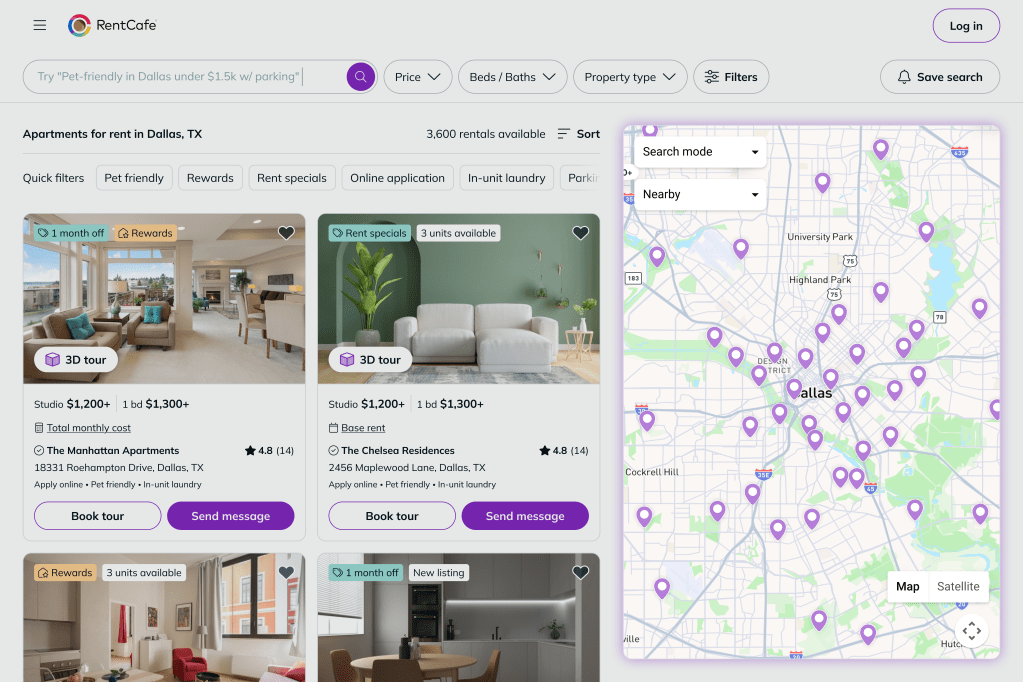
If location is a top priority — such as proximity to work, school, or public transit — map view can help you narrow your options.
5. What information is on a RentCafe property listing?
Click on any listing to view the full property page.
Here you’ll find more detailed information, including:
- Floor plans and layouts
- Current pricing
- Unit availability
- Photos and virtual tours
- Amenities and community features
- Office hours and contact options
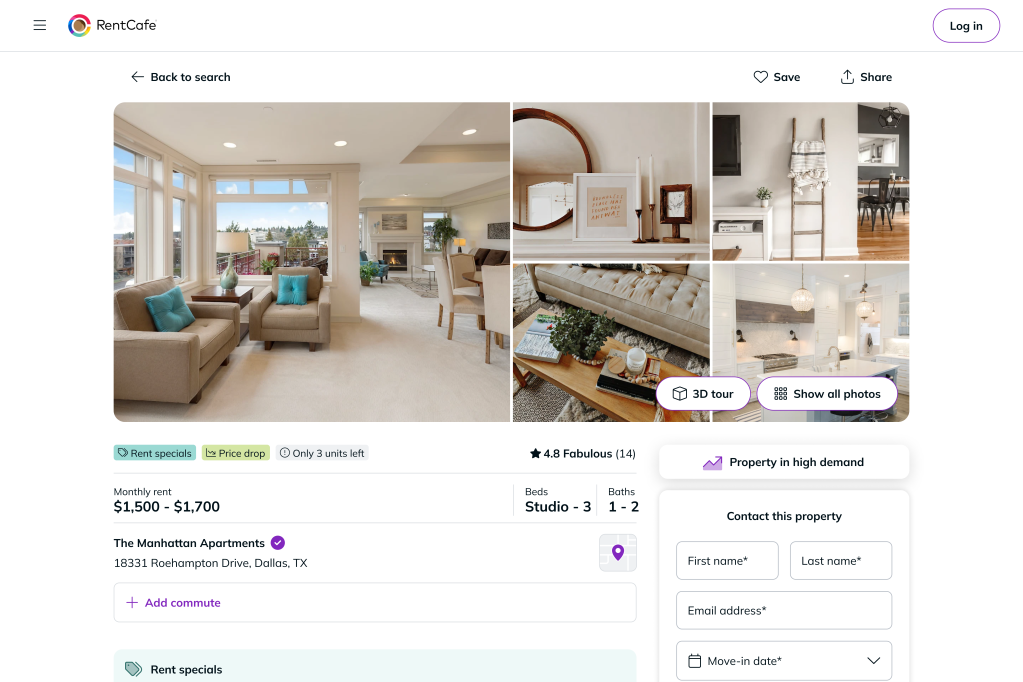
Take your time reviewing the floor plans. Pricing may vary between units based on size, floor level, lease term, or availability.
6. How do I check floor plans and availability?
Inside the listing, go to the “Floor plans” section to compare available layouts.
You can:
- View square footage
- Compare pricing by unit
- Check available move-in dates
- See which units are ready now
If no rent price is displayed, the property has chosen not to publish it. You can contact the leasing office directly through the property page for more details.
7. How do I save listings to compare later?
If you’re not ready to decide, you can save listings to your favorites to compare or review later. To do this, create or log into your RentCafe account and simply click the heart icon on a property to save it to favorites.

This is helpful if you’re comparing multiple communities over several days. You may also opt to receive price drop notifications by email for your saved listings, as well as recommendations for similar listings.
8. How do I save my search results?
You may save your search preferences (your preferred locations, filters, etc.) by logging in or creating a RentCafe account and clicking on the “Save search” button. This allows you to return to your current search and continue as needed.
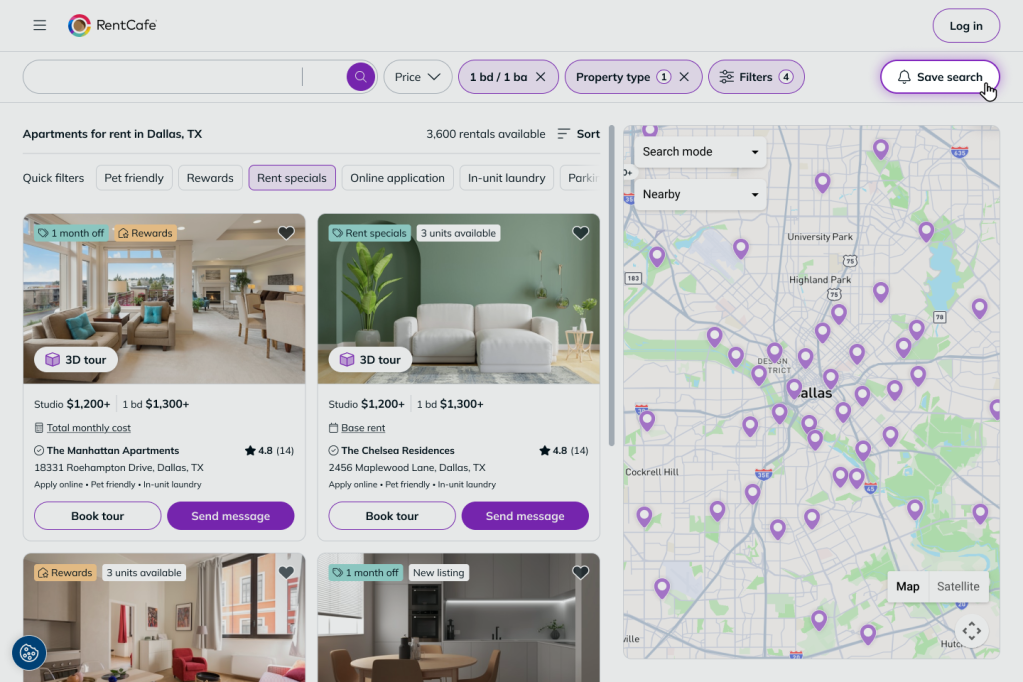
Additionally, you may opt to receive email notifications when new apartments that fit your search preferences become available, or recommendations for similar listings.
9. How do I contact a property?
When you would like to find out more information directly from the property manager, you can send them a message or call.
Look for the “Send message” button on the property page or on the search results page, fill out the form with your contact information and submit the form. Your inquiry is then sent to the property by email.
You must provide your full name and a valid email address. A preferred move-in date is also required, so that the leasing office can provide you with availability and pricing information for apartments available when you want to move.
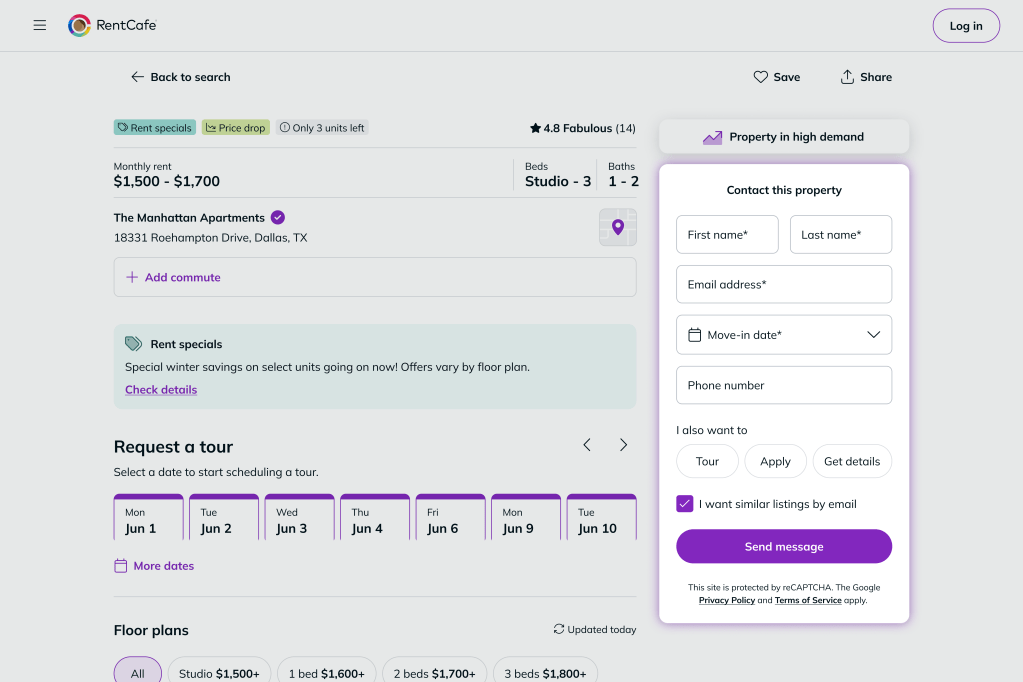
If you prefer to be contacted by phone, you have the option to include your phone number on the form.
You may also call the property at the phone number listed on the property page. If you haven’t heard back after a few days, we encourage you to call the leasing office directly.
You should receive a response from the property by email, or by phone if you provided one. Each property manages its own inquiries and leasing process, so response times may vary.
10. How do I schedule a tour of the property?
When you’re ready to visit an apartment, look for the “Schedule a tour” section on the property page, select a date, and fill out the contact form. You can also use the “Tour” tab in the Contact this property form and submit your name, email address, and preferred move-in date.
Providing your phone number is optional but can make it easier for the leasing office to contact you.
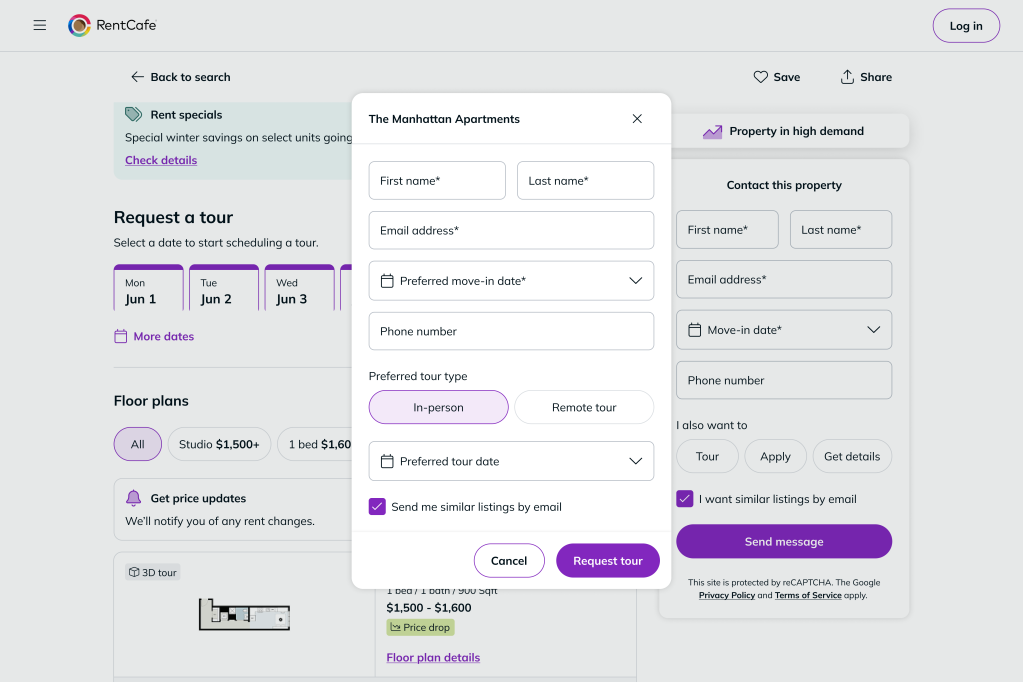
If the property supports multiple tour types, you will be able to choose between an in-person and a remote (video) tour. An in-person tour means that you want to visit the apartment community in person, by appointment. A leasing agent will show you around the community as well as the specific apartment you inquired about. If the apartment you are interested in is occupied at the time of your visit, they may show you a similar apartment.
A remote tour is essentially a live video tour you can arrange with the leasing office, an option for those who are not able to visit the property in person for various reasons (e.g. moving from out of state, medical reasons, etc.).
11. How do I apply to a property?
Many rental listings on RentCafe have the option to apply online, a convenient feature that allows you to complete the entire application process — from filling out your personal information, ID verification, background checks and uploading required documents to paying your application fee — securely and entirely online.
Look for the “Apply now” button to start the application process. You will be prompted to sign up for a RentCafe account, to keep things secure and so you can return to continue or check the status of your application.
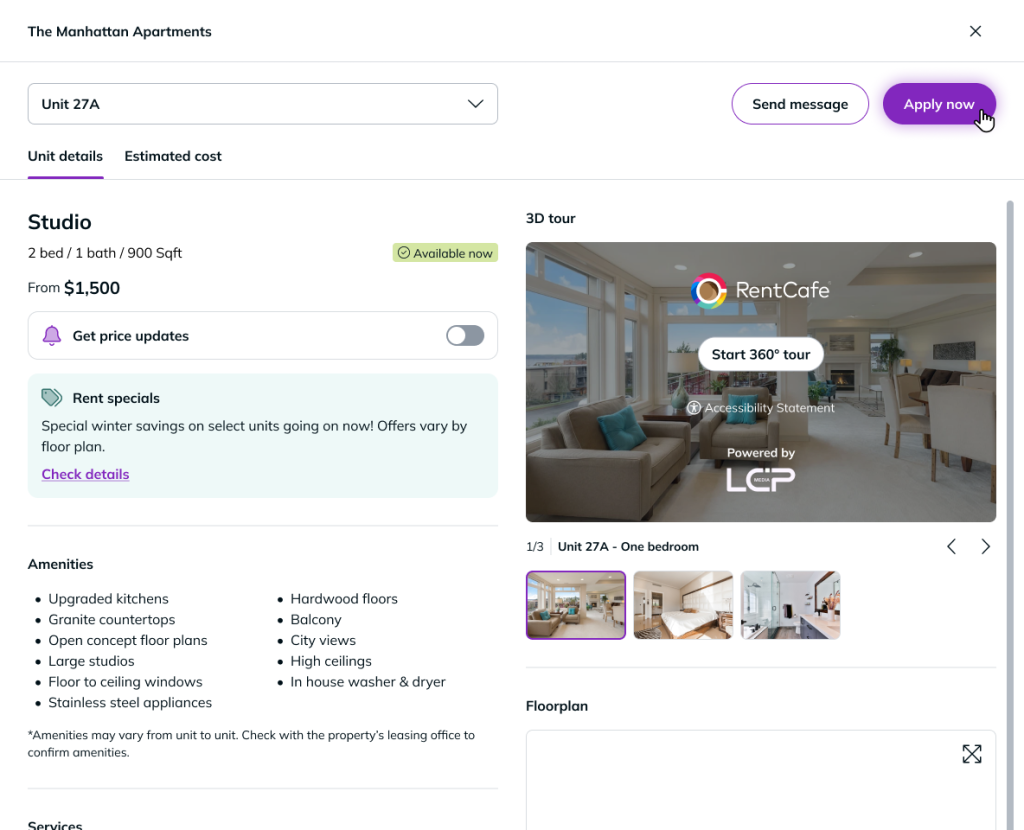
For rental listings that do not have the “Apply now” button, you may send a message to the property using a contact form provided on the listing. On the form, select the “Apply” option before submitting it. The property manager will respond with information on how to apply.
Troubleshooting
The search page isn’t loading
- Refresh your browser
- Clear your cache
- Try a different browser
- Check your internet connection
My search phrase didn’t work
- Simplify your wording
- Remove extra details
- Try separating your search into filters
The map isn’t displaying correctly
- Enable location services
- Zoom in or out
- Refresh the page
FAQ
This may happen if:
• No listings are available in your price range
• Your amenities or size filters are too restrictive
• Your move-in date limits availability
• No properties in that area are listed on RentCafe
Try expanding your search area or removing one or two filters.
Rent can vary based on:
• Floor level
• Unit size
• Lease term
• Availability
• Apartment amenities
Always check pricing for the specific unit you’re interested in.
Some communities choose not to display rent prices publicly. To request pricing information, you can send the property leasing office a message using a contact form on RentCafe or call the leasing office directly at the contact number provided on RentCafe.
No, you can search without an account. However, creating a free account allows you to save favorite listings, save your search preferences, apply online and track your application status.
Yes. Create a free RentCafe account and use the “Save search” link on the results page to save your current filters and location. You can also click the heart icon on individual listings to save them to your Favorites. Both are accessible anytime when you log in.