
Can’t access your RentCafe account? Here’s how to fix it.
Summary
RentCafe uses passwordless login, so you don’t need a traditional password. To log in, enter the email address associated with your RentCafe account, then check your inbox or messages for a six-digit verification code. Enter the code within 10 minutes to access your account. If the code doesn’t arrive or your account is locked, follow the troubleshooting steps below.
RentCafe login issues can happen for a few common reasons. Understanding what’s going on helps you get back into your account faster — so you can search for apartments on RentCafe, pay rent, submit maintenance requests and manage your account without missing a beat.
Most login problems are related to the RentCafe passwordless login system. Instead of remembering a password, RentCafe sends you a one-time verification code by email or text message each time you log in. This keeps your account more secure, but it also means a few extra things can go wrong — like a delayed email, a typo in your address or an expired code.
You might also run into issues if you’ve made too many login attempts in a short period, if your account email doesn’t match what’s on file with your property or if your browser is blocking the login page from loading properly.
How to log in with a verification code
Follow these steps to log in to your RentCafe account using passwordless login:
- Go to the login page
Navigate to your property’s RentCafe login page or visit rentcafe.com and select “Login.” - Enter your email address on the login page
Enter the email address associated with your RentCafe account. - Check for your verification code
Look for a six-digit code (example: 771034) in your email inbox or text messages. The email sender will be no-reply@rentcafe.com or a property-specific email address. If you’ve previously saved a mobile phone number in your account settings and enabled text notifications, the code will also be sent by text message. - Enter the verification code
Type the six-digit code on the login page within 10 minutes of receiving it. - Verification complete
Once verified, you’ll be taken directly to your RentCafe dashboard.
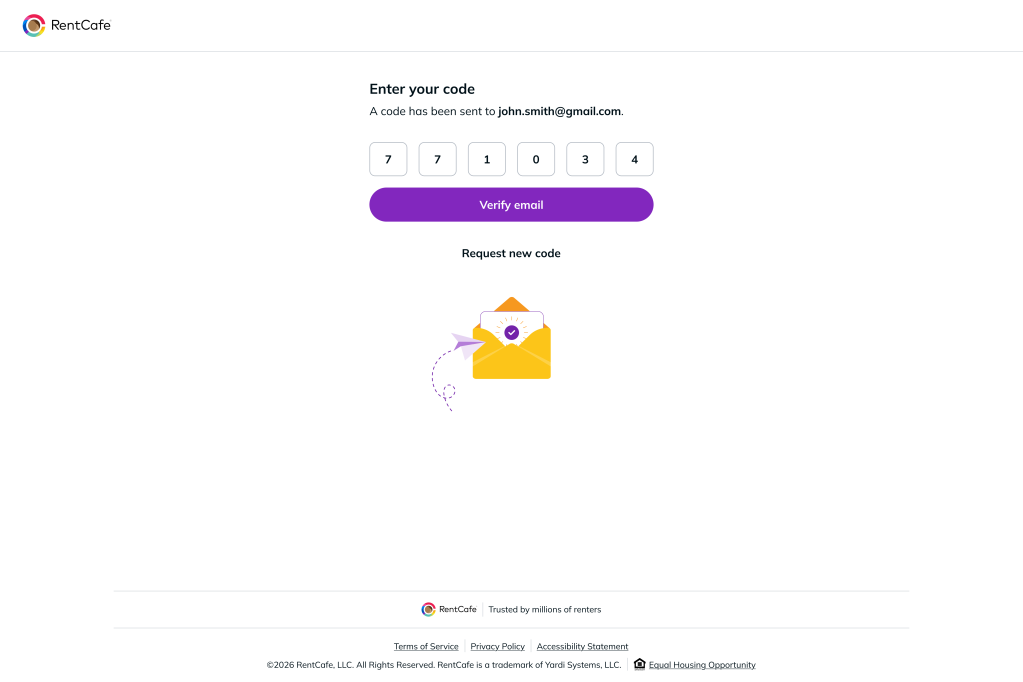
Alternative login options
If your property supports third-party login, you can also sign in using your Google account or Apple ID. Look for these options on the login page and follow the prompts to connect your account.
Third-party login can be a great option if you’re not receiving verification codes or prefer a faster sign-in experience.
Troubleshooting common login issues
Most RentCafe login problems have a simple fix. If the standard login steps didn’t resolve your issue, here are the most common situations renters run into. Find the situation that matches yours and follow the instructions to get back into your account quickly.
I’m not receiving my verification code
If your code hasn’t arrived after a few minutes, try these fixes:
- Check your spam, junk or promotions folder for an email from no-reply@rentcafe.com.
- Confirm that the email address or phone number you entered matches the one on file with your property manager.
- Wait a few minutes before requesting a new code. Codes can sometimes take a moment to arrive.
- Switch your delivery method. If you’re not receiving codes by text, check that a mobile phone number is saved in your RentCafe account settings with text notifications enabled. Codes are sent by email by default.
- Add no-reply@rentcafe.com to your email contacts to prevent future messages from being filtered.
My verification code expired
Verification codes are valid for 10 minutes. If your code has expired, return to the login page and request a new one. Make sure to enter the code as soon as it arrives. Only the most recent code you’ve requested will work — earlier codes are automatically deactivated.
My account is locked
For your security, RentCafe locks your account after six unsuccessful login attempts. There are two possible lock states:
- Temporary lock: You’ll see “Your account is temporarily locked for 30 minutes. Please try again later.” Wait 30 minutes and try again — no further action is needed.
- Permanent lock: You’ll see “Your account is locked. Please contact your property manager for assistance unlocking it.” In this case, reach out directly to your property management team to restore access.
To avoid getting locked out, double-check that you’re entering the most recent code you received and that you’re using the correct email or phone number on file.
The login page isn’t loading or working correctly
If the login page seems broken, frozen or isn’t responding, try these quick fixes:
- Clear your browser’s cache and cookies, then refresh the page.
- Try a different browser (such as Chrome, Safari, Firefox or Edge).
- Disable browser extensions that may block scripts or pop-ups.
- Check your internet connection and try switching between Wi-Fi and mobile data.
- If using the RentCafe app, make sure you have the latest version installed from the App Store or Google Play.
I don’t recognize the email or phone number on my account
Your RentCafe account is tied to the email address and phone number your property manager has on file for you. If you’ve recently changed your email or phone number or aren’t sure which one is linked, contact your property manager directly. They can update your account information so you can log in with the correct details.
Still need help?
If you’ve tried everything above and are still experiencing RentCafe login issues, help is just a call away. You can:
- Contact your property manager’s office directly for account-specific concerns.
- Call the RentCafe support hotline: (833) 711-1130.
FAQ
No. RentCafe uses a passwordless login system. Instead of creating and remembering a password, you receive a one-time, six-digit verification code by email or text each time you sign in. This approach is designed to keep your account safer and make logging in easier.
Yes, if your property supports it. Select “Continue with Google” or “Continue with Apple” on the login page. This option allows you to skip the verification code process entirely.
Each verification code expires after 10 minutes. If your code has expired, return to the login page and request a fresh one. Always use the most recent code sent to you.
After 6 unsuccessful attempts, your account is temporarily locked for 30 minutes. This is an automatic security measure. Once the 30 minutes pass, you can try again with a new code.
If you’ve tried the steps in this guide and are still having trouble logging in, reach out to RentCafe support at (833) 711-1130. You can also contact your property manager’s office for help with account-specific issues, such as updating your email address.
Yes. RentCafe works on any mobile browser and is also available as an app for both iOS and Android. The login process is the same: enter your email or phone number, receive a code and you’re in.