
How do I check my RentCafe application status?
Summary
You can check your application status by logging into your account. Once logged in, you’ll be able to view your application status, documents, and any required next steps.
This guide shows how to locate and review your application status after submission.
How do I check my application status on RentCafe?
1. Sign in to your RentCafe account
Go to www.rentcafe.com and log in. You’ll be taken to your account dashboard.
2. Open the “My Accounts” section
From your dashboard:
- Open the navigation menu
- Click on “My Accounts”
3. Select your application
You’ll see a list of your submitted applications.
Click on an application to view its details and status.
What information can I see in my application?
Once you open your application, you will see the following:
- Application status
- Rental summary
- Uploaded documents
- Options to print or download your application
- The option to cancel your application (if available)
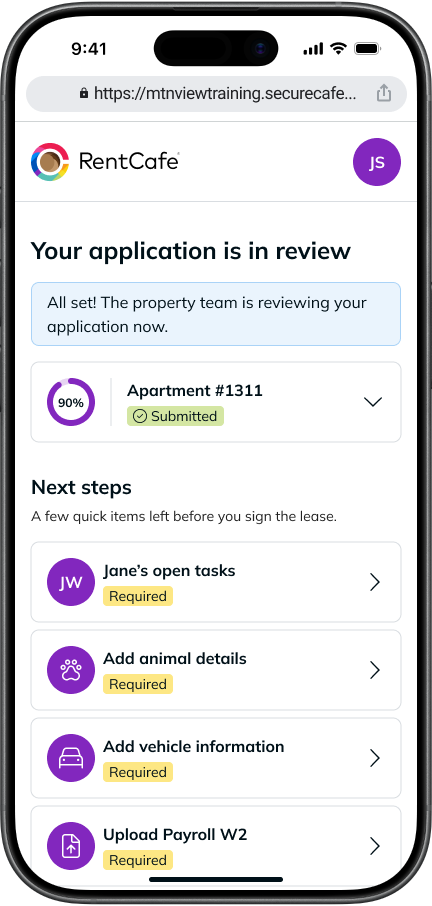
The “Next steps” section highlights actions you may still need to complete before moving forward. These can include things like:
- Completing roommate or co-applicant documents
- Adding pet (animal) details
- Adding vehicle information
- Uploading required documents, such as payroll W2
Each item is marked as required (if applicable) and can be opened directly from this section.
For a full breakdown of what these steps mean and when to complete them, see:
👉 What happens after submitting a RentCafe application?
What can I find in the “My documents” section?
In the “My documents” section, you can review files for the main applicant and any roommates or co-applicants.
You will also see:
- Hold deposit addendum
- Insurance policy
- Payroll W2
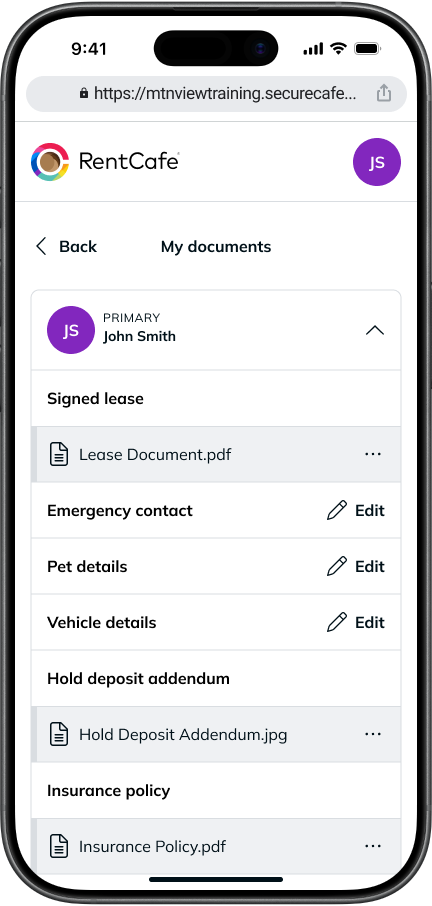
If your application is approved and your lease is signed, your signed lease will also appear here.
What should I do if my application status hasn’t changed?
Application reviews can take a few days.
If your status hasn’t changed:
- Wait a few days for processing
- Check if any required documents are missing
- Contact the leasing office for updates if needed
What should I do if I can’t find my application?
Make sure you’re logged into the correct account and that you’re using the same platform where you originally applied, whether that’s through RentCafe or using a property website’s Applicant Portal.
If you still don’t see your application, try logging out and back in before checking again.
FAQ
Status updates depend on the property’s review process. Updates are typically reflected once the leasing team reviews your application.
In most cases, the property will contact you directly. You can also log in to check updates at any time.
Yes. If you applied to multiple properties, you may see multiple applications listed in your account.
Once your application is approved, you can move forward with signing your lease and preparing for move-in.