
How do you filter apartment listings by price, location and amenities on RentCafe?
Summary
- On RentCafe, you can use search filters to quickly narrow down apartments that match your needs. Adjust your preferred rent range, select your desired locations and choose the amenities that are important to you.
- You can also use the AI-powered natural language search to describe what you are looking for in your own words (for example, “one‑bedroom in Brooklyn under 2,500”), to see relevant options even more quickly. In select cities, you can also try “AI Mode”, a conversational AI assistant, by clicking “Try AI Mode” on the search results page.
Use advanced filters to narrow down apartment search results by monthly rent range, geographic area, amenities and more. To apply filters, click the “Filters” button on the results page, choose your preferred settings and the listings will update automatically.
How to filter apartment listings on RentCafe
Step 1: Set a price range
- Go to RentCafe.com and search for a city, neighborhood or zip code.
- Click the “Filters” button next to the search bar.
- Find the “Price” section and enter a dollar amount in the “Minimum” and/or “Maximum” fields. You can also drag the slider to adjust your price range.
- Go to RentCafe.com and search for a city, neighborhood or zip code.
- Click the “Price” button in the filter bar at the top of the search results page.
- Enter a dollar amount in the “Minimum” and/or “Maximum” fields. You can also drag the slider to adjust your price range.
Step 2: Define a location
- Narrow down the search by typing a neighborhood, zip code, or address in the search bar.
- Narrow down the search by typing a neighborhood, zip code, or address in the search bar.
- Alternatively, locate the “Search Mode” on the map and define the geographic boundary that you want. You can see neighborhoods, zip code boundaries or even draw your custom area.
Available search modes
Default: Shows apartments across the full city or area you searched for.
Neighborhoods: Limits results to the specific neighborhoods you click on.
Zip codes: Displays listings only within the selected postal codes you click on.
Radius: Shows apartments within a selected distance from the entered location.
Draw: Allows you to manually draw a search area directly on the map.
Step 3: Select amenities
- Click the “Filters” button in the search bar at the top of the results page.
- Select one or more features from the available categories.
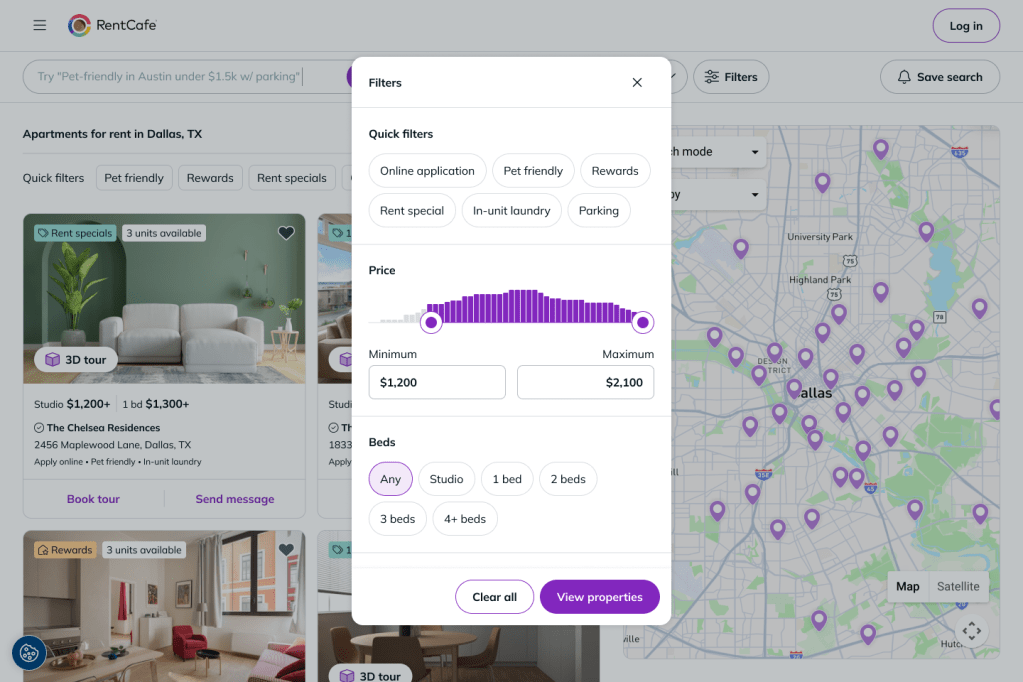
Amenity categories
Quick filters: Quickly filter by commonly searched criteria, such as Online application, Pet friendly, In-unit laundry, Parking or Rent specials.
Price: Set a minimum and/or maximum monthly rent range to filter listings by cost.
Beds: Filter by number of bedrooms, from studio up through 4+ bedrooms.
Baths: Filter by minimum number of bathrooms, typically 1, 2, or 3+ baths.
Move-in date: Choose your target move-in date to see only apartments available by that time.
Property rating: Show only apartments rated 3, 4 or 5 stars by residents.
Property type: Choose the type of rental you’re looking for: Any, Apartment, Condo, Home, Townhouse, Student and Affordable.
Pet policy: See only apartments that allow cats, dogs or both.
Apartment amenities: Select features you want inside your apartment, such as in-unit washer and dryer, dishwasher or air conditioning.
Community amenities: See only options with access to shared property features like a fitness center, high-speed internet, covered parking or swimming pool.
Property name: Filter results by the name of a specific property or apartment complex.
Company name: Search for all apartments from a specific property management company in the desired area.
Step 4: Combine filters
You can apply multiple filters at the same time.
- Apply a price range, location and one or more amenities using the steps above.
- Review the updated listings. Every displayed result meets all active filter conditions.
- If zero results appear, remove or widen one filter at a time.
How to use natural language search instead of manual filters
Instead of adjusting individual fields, you can type a descriptive phrase directly into the search bar and RentCafe.com shows you apartments that match the criteria.
- Go to the RentCafe.com search bar.
- Type a descriptive phrase that includes your requirements. For example: “2-bedroom apartment under $1,500 in Chicago with parking” or “pet-friendly studio near Sheffield”.
- Review the results. Adjust your phrase to refine your search even further.
How to use Ask Ren instead of manual filters
If you prefer not to browse manually, RentCafe.com’s AI chat assistant can do the filtering for you. Click “Ask Ren” on the search results page, then type what you’re looking for in the chat — for example, “studio in Austin with rent specials.” Ask Ren will show you apartments that match your description. You can keep refining from there by adding more details, like must-have amenities or a specific neighborhood, until you find exactly what you’re looking for.
Note: Ask Ren — a conversational AI chat assistant — is available in select cities. Look for the “Ask Ren” button on the search results page.
Ready to find your next happy place? Try these filters on RentCafe.com and see what’s available.
FAQ
There’s no limit to the number of filters you can use at once. However, adding too many filters might result in a very limited list of results or even no results.
The price filter includes the base rent, as well as recurring monthly fees and costs. It does not include utilities, application fees, or other optional charges.
Yes, this feature is available for registered users.
No. The “Zip Codes” search mode restricts results strictly to listings within the selected zip code boundaries.
Instead of setting individual filters, you can type what you’re looking for in your own words directly into the RentCafe search bar. For example, try “pet-friendly 2-bedroom in Austin under $1,500 with parking” or “studio near downtown Chicago.” RentCafe reads your description and shows you apartments that match.