
How do I add a bank account to my RentCafe resident account?
Summary
To add a bank account to your RentCafe resident account, sign in and go to “Rent & Payments,” then open “Wallet” and select the option to add a bank account. Depending on your property’s setup, you may be able to connect your bank instantly through Finicity or manually enter your bank details and verify the account through micro-deposits. Once your bank account is added and verified, you can use it for online payments.
Before you begin
Before adding a bank account, make sure you:
- Have an active RentCafe resident account
- Are signed in to your resident portal
- Have access to your bank account information
- Can access your online banking, if instant verification is available
- Can check your bank activity over the next few business days, if micro-deposit verification is required
If you don’t have an account yet, you’ll need to register before accessing the resident portal.
How do I start adding a bank account?
1. Go to RentCafe and sign in
Open RentCafe on your mobile device and sign in to your account.
2. Open the “Rent & Payments” tab
At the bottom of the screen, tap “Rent & Payments” in the navigation bar.
3. Go to “Wallet”
Tap “Wallet” to view your payment methods. From there, select the option to add a bank account.
1. Sign in to your RentCafe account
Go to www.rentcafe.com and sign in. You’ll be redirected to your resident dashboard.
2. Open the “Rent & Payments” section
On the left side of the screen, locate the sidebar menu and click “Rent & Payments.”
3. Go to “Wallet”
On the “Payments” page, look for the “Wallet” button on the right side and click on it to open your payment methods.
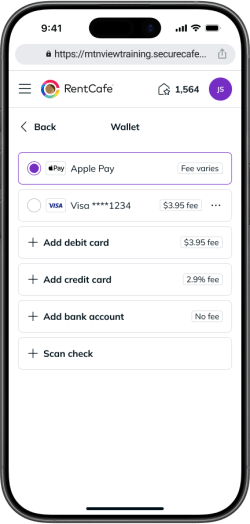
From the “Wallet” page, you will see options such as:
- Add debit card
- Add credit card
- Add dank account
- Scan check
Select the option to add a bank account.
Which bank account setup method will I see?
The available setup method depends on your property’s payment settings. After selecting the bank account option, you may be able to:
- Instantly add a bank account through Finicity
- Manually add a bank account and verify it with micro-deposits
Follow the section below that matches what you see on your screen.
How do I instantly add a bank account with Finicity?
Some properties allow U.S. residents to verify a bank account instantly through Finicity.
Finicity is a third-party account verification service. It lets you connect your bank account by signing in through your online banking portal. This method does not require micro-deposit verification.
1. Select the instant bank account option
From “Wallet,” select the option to add a bank account.
If instant verification is available, a bank account drawer will open with the option to connect your bank through Mastercard Data Connect. Click or tap “Connect bank account” to continue.
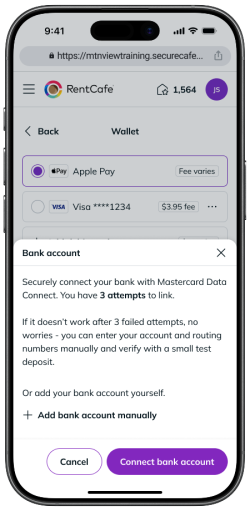
If you don’t want to connect your bank this way or if the connection does not work, select “Add bank account manually” to enter your routing and account numbers instead.
Tip: You have a maximum of 3 attempts to connect through Mastercard Data Connect. If all 3 attempts fail, you will see the message “We couldn’t connect your bank” with an option to “Add account manually” and proceed with micro-deposit verification.
2. Continue through Mastercard Data Connect
After you click or tap “Connect bank account,” you’ll be taken to Mastercard Data Connect to link your account.
Review the information on the screen, then click or tap “Next” to continue. You may also be asked to enter your mobile number so Mastercard Data Connect can verify it is you and remember connected accounts for faster account linking next time.
If you don’t want to enter your mobile number, select “Maybe later” if that option appears.
3. Search for your bank
Use the search field to find your bank or financial institution and select it from the list.
Some smaller banks may not be supported. If your bank does not appear, you may need to add your account manually instead.
4. Sign in to your bank
Follow the prompts to sign in using your online banking credentials. Your bank may ask you to complete an additional security step, such as entering a one-time code.
5. Choose the account you want to add
If you have more than one eligible bank account, select the account you want to use for RentCafe payments.
6. Confirm and return to RentCafe
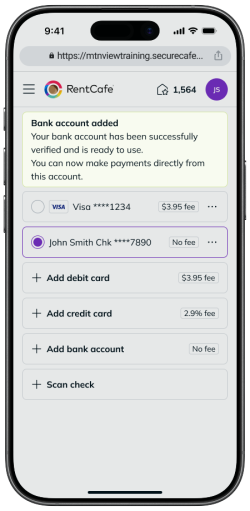
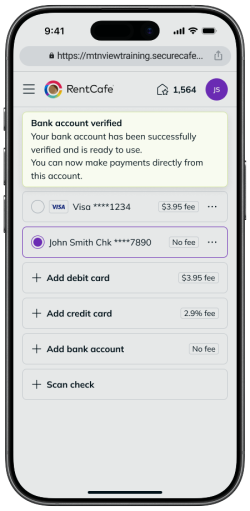
After verification is complete, you’ll automatically return to the “Wallet” screen. Your bank account should now appear in your list of payment methods, along with a message confirming that the bank account has been successfully verified and can now be used.
How do I manually add a bank account with micro-deposit verification?
Some properties use manual bank account entry with micro-deposit verification.
With this method, you enter your bank details first. A small test deposit is then sent to your bank account. You must confirm the deposit amount before the account can be used for payments.
This option is available for both U.S. and Canadian users.
1. Select the manual bank account option
You can start manual setup in one of two ways.
From “Wallet,” click or tap “Add bank account.” If your property uses manual micro-deposit verification, a bank account drawer will open where you can enter your account details.
If instant verification is available, you’ll first see a drawer that asks you to connect your bank through Mastercard Data Connect. To add your bank manually instead, click or tap “Add bank account manually.”
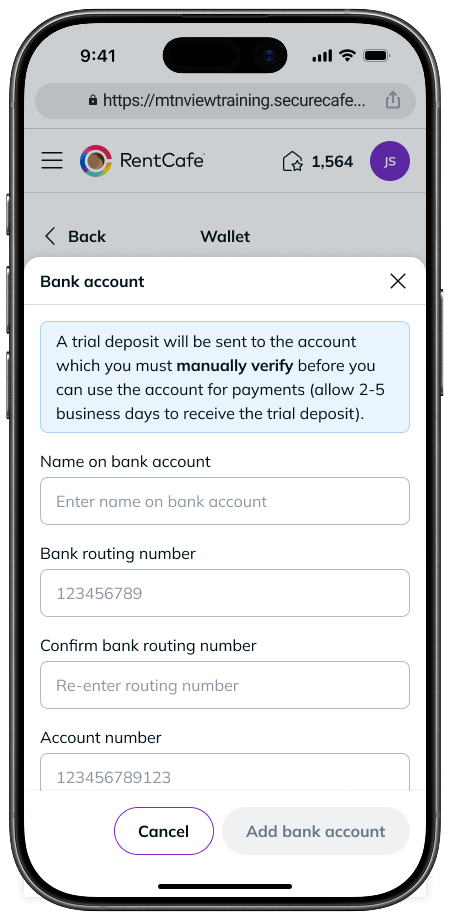
Manual setup starts the micro-deposit verification process. A small test deposit will be sent to your bank account. You’ll need to verify the deposit amount before using the account for payments.
2. Enter your bank details
A pop-up window will appear.
The fields may vary depending on your country, but you may be asked for details such as:
- Name on bank account
- Bank routing number
- Account number
- Account type
- Transit number and institution number, for Canadian accounts
As you scroll, you may see a diagram showing where to find these details on a check.
Review everything carefully before continuing, then click or tap “Add bank account.”
3. Save your bank account
After saving, the account will appear in your wallet with a “Pending” status. You will need to verify the micro-deposit before using the bank account for payments.
4. Wait for the micro-deposit
Check your bank account activity over the next few business days. The micro-deposit can take 2–5 business days to appear, depending on your bank.
5. Return to wallet and verify the deposit
Once you see the micro-deposit in your bank account, return to your RentCafe wallet.
Open the pending bank account and select “Verify your bank account.”
6. Enter the deposit amount
Enter the deposit amount exactly as it appears in your bank account and click or tap “Verify account.”
Do not guess the amount. You will have a maximum of three attempts to verify the deposit correctly. If you exceed this number, your account may be blocked.
7. Complete verification
After verification is complete, you’ll automatically return to the “Wallet” screen. Your bank account should now appear in your list of payment methods, along with a message confirming that the bank account has been successfully verified and can now be used.
How do I know which method to use?
Use the method shown in your RentCafe Wallet.
If the RentCafe Wallet opens a drawer with the text “Securely connect your bank with Mastercard Data Connect” and a “Connect bank account” button, your property supports instant bank account linking through Finicity.
If you see an “Add bank account manually” link, you can enter your bank details and complete micro-deposit verification.
If you’re not sure which method applies to you, follow the prompts on the screen or contact your property management office.
Can I view payment FAQ in “Wallet”?
Yes. On the “Payments” page, you’ll see a “FAQ” section with more information about payment methods.
This section can help answer common questions about adding, verifying, or using payment accounts.
What if I don’t see the “Wallet” option?
If you don’t see the “Wallet” feature, it may be because:
- Your property does not support online payments
- Your account does not have payment access enabled
- You are not fully signed in to the resident portal
Contact your property management office for more information.
Troubleshooting
My bank account won’t save
Double-check your bank details before saving. Make sure:
- Your routing or transit number is correct
- Your account number is entered correctly
- Required fields are completed
- There are no extra spaces
If your property uses micro-deposit verification, your bank account may not be ready to use until verification is complete.
I entered the wrong bank details
If the account was saved incorrectly:
- Go back to “Wallet”
- Remove or edit the bank account
- Add the correct details again
My bank account is showing as pending
A pending status usually means your account still needs to be verified.
If you added the account manually, check your bank activity for the micro-deposit. Once it appears, return to “Wallet” and select “Verify your bank account.”
I don’t see the micro-deposit
Micro-deposits can take 2–5 business days to appear.
If you still don’t see the deposit after that time, confirm that you entered the correct bank details. If the issue continues, contact your property management office.
I entered the wrong deposit amount
Check your bank activity and try again using the exact deposit amount.
If you enter the wrong amount too many times, the bank account may become disabled for verification. If that happens, you may need to try instant verification through Finicity (if available), add a different bank account, or contact your property management office.
Finicity cannot connect to my bank
Make sure you selected the correct bank and entered your online banking credentials correctly.
If your bank is not listed or cannot be connected, use the manual bank account option if available. You may also be able to use a different payment method.
I’m not seeing the “Payments” tab
- Make sure you are signed in to your resident account (not browsing listings)
- Try refreshing the page or signing in again
FAQ
Yes. You can typically add multiple payment methods in your wallet and choose between them when making a payment.
Yes. If you haven’t already done so, you will be prompted to add a payment method during the application process. This depends on the property and whether application fees or deposits are required. If prompted, you can enter your bank account details as part of your application.
Some properties use Finicity to verify bank accounts instantly. If this option is available, you can connect your bank by signing in through your online banking portal.
Some properties use micro-deposits to confirm that the bank account belongs to you. You’ll need to check your bank account for the small deposit and enter the amount in RentCafe.
Micro-deposits can take 2–5 business days to appear in your bank account. After they appear, you must return to Wallet and verify the deposit amount.
Finicity may not support every bank, especially smaller financial institutions. If your bank is not listed, use the manual bank account option if available.
Yes. RentCafe uses secure systems to process payment information. Always make sure you are on the official RentCafe site or app or on a property’s official applicant portal when entering your details.
Yes. Once your bank account is added, you may be able to use it for scheduled or recurring payments, depending on your property settings.
You can usually find these on a paper check or through your bank’s website or app. The pop-up window in the “Add bank account” page also displays a diagram to help you locate them.