
5 smart ways to use the custom Draw map tool to find apartments in your exact area
Summary
RentCafe’s custom Draw map tool lets you draw your own boundary on the apartment search map so you only see listings inside the exact area you want, whether that’s a workplace radius, a school district or a neighborhood you already love. You can also use it to leave out areas you’d rather avoid, then layer on filters for price, bedrooms, pets and amenities. To find it, search for a city, ZIP code or neighborhood on RentCafe.com, then switch to map view on the results page. Look for the Draw utton on the map on both desktop and mobile to trace your boundary. Once your boundary is set, you can clear and redraw it anytime to compare different streets or commute zones.
Searching for apartments in the exact spot you want shouldn’t mean scrolling through an entire city’s worth of listings. With RentCafe’s custom Draw map tool, you can sketch your own boundary directly on the search map, so you only see the listings that fall inside the area you actually care about. It’s a simple way to trade a broad, overwhelming apartment search for one that feels focused and personal.
What is the custom Draw tool?
The custom Draw map tool is a search feature on RentCafe that lets you sketch your own boundary directly on the apartment search map. Anything inside the shape you draw shows up in your results, and anything outside it stays hidden.
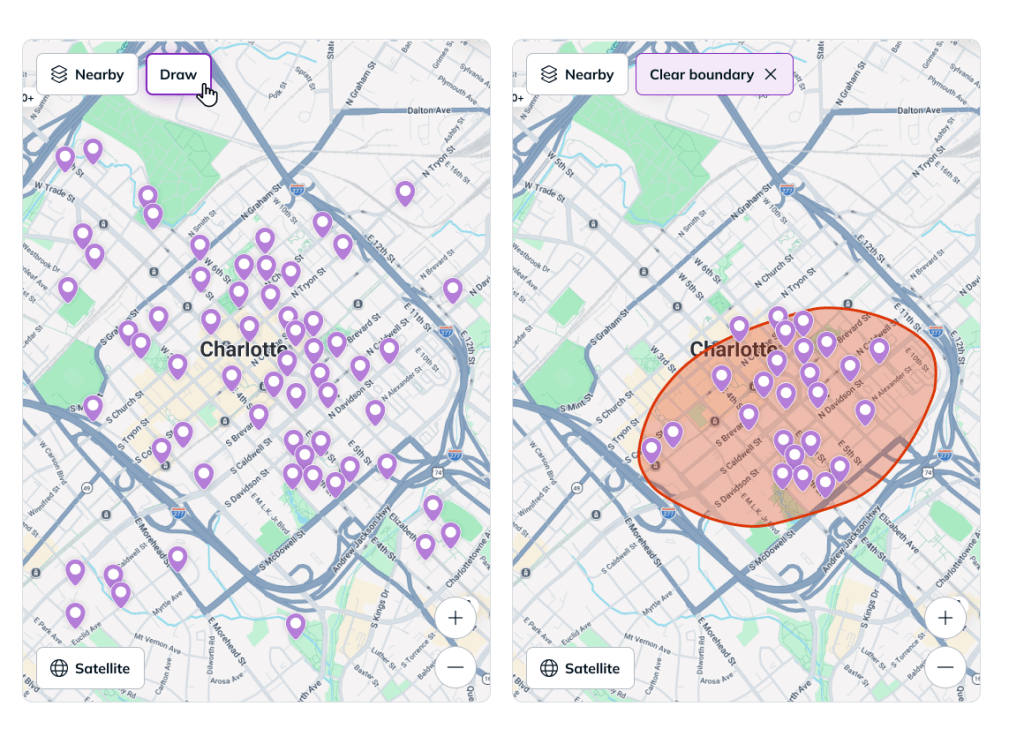
This gives you more control than a standard search — and it’s completely free to use. It’s especially useful when the area you want doesn’t match a set city, ZIP code or neighborhood area, like a five-block stretch near work or the edge of a school zone.
5 ways to use RentCafe’s custom Draw map tool
This tool shines when you have a clear idea of where you want to live. Here are five practical ways to use it, from shortening your commute to zeroing in on a neighborhood you already love:
1. Search near your workplace to shorten your commute
If a short commute is a top priority, draw the area around your workplace. This helps you find apartments within a comfortable driving, biking or walking distance.
Instead of reviewing listings across an entire city, you focus only on homes that support your daily routine.
Try drawing a smaller area first for more targeted results, then expand it if you want to compare nearby options.
2. Focus on a school district or campus area
If you want to live near a college campus or inside a specific school district, the tool helps you search more precisely. Drawing your own boundary narrows results to the area that matters most.
This is especially useful for families who want to stay within a preferred district, and for students looking for apartments close to campus.
Custom boundaries help you avoid opening listings that are close to your target area but not actually inside it.
3. Zero in on a neighborhood you already like
If you’ve explored a neighborhood and love the vibe, draw tightly around those few blocks. The tool lets you skip broad citywide results and focus on the streets you want to live on, which is a real advantage in competitive rental markets.
By shaping your boundary carefully, you control not just where to look but where not to look. This approach works well if you already know the restaurants, transit stops and parks you want nearby.
It’s a smart move when:
- You’ve already explored the area in person.
- Location is your biggest priority in a competitive market.
- Broad city searches return too many unrelated results.
If a neighborhood you love has few listings inside your boundary, extend your shape by a block or two in the direction you like most to catch nearby options without losing your location focus.
4. Leave out areas you want to avoid
Apartment hunting is not only about finding the right area. It is also about avoiding the wrong one. With the custom Draw map tool, you can draw around the locations you want to include and leave out the ones that do not fit.
For example, you might want to skip high-traffic roads, industrial sections, or spots that are far from your usual route.
A carefully drawn search area saves time by filtering out listings you are unlikely to choose.
5. Combine your custom boundary with other filters
One of the best ways to get highly relevant results is to use the custom Draw map tool together with search filters. After drawing your target area, apply filters like price range, bedroom count, pet-friendly options or specific amenities. This narrows your results based on both location and lifestyle needs.
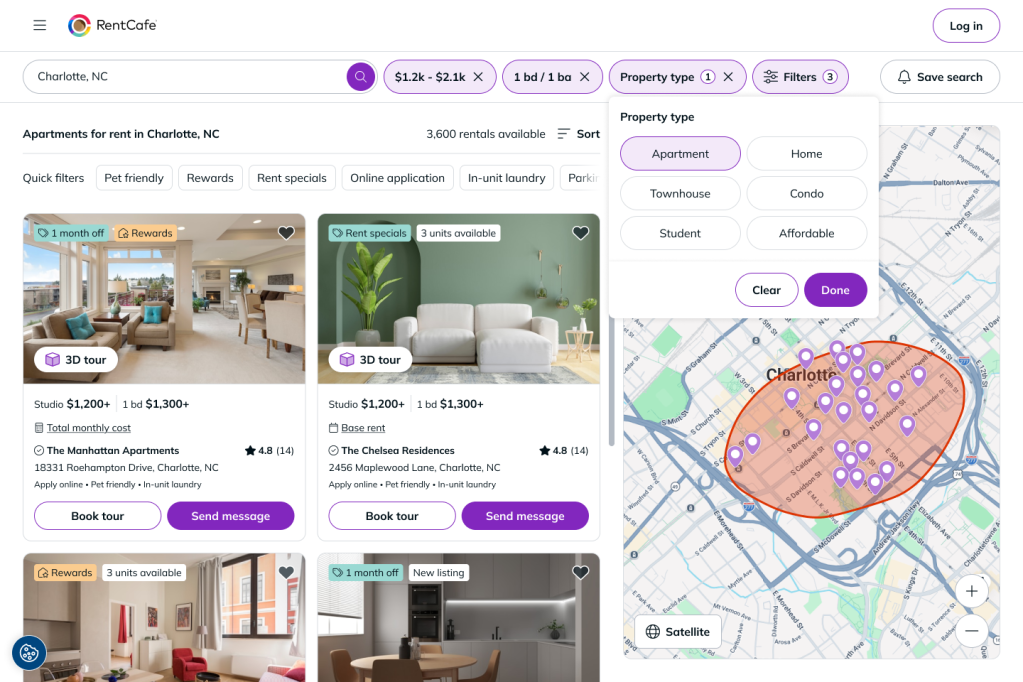
Use the Draw map tool for:
- Exact location targeting
- Neighborhood-level precision
- Customized search boundaries
Use filters for:
- Budget and rent range
- Bedrooms and bathrooms
- Pet policies and amenities
Why RentCafe’s custom Draw map tool helps your apartment search
The custom Draw map tool gives you more control over your apartment search on RentCafe. It helps you move beyond broad location searches and focus on the places that truly fit your day-to-day needs.
Whether you are searching near work, school, transit or a neighborhood you already know, drawing your own search area helps you find more relevant listings faster.
Quick recap
To get started, search for a city, ZIP code or neighborhood on RentCafe.com — on mobile, switch to Map view — and select Draw. Then put it to work:
- Draw around your workplace to shorten your commute.
- Search within a school district or campus area.
- Focus on a neighborhood you already know and like.
- Leave out areas you don’t want to consider.
- Pair the Draw map tool with filters for more precise results.
Ready to try it? Head to apartment search on RentCafe, draw your first boundary and refine from there.
FAQ
Use it when you want more control than a city, ZIP code or neighborhood search can provide. It is especially helpful when your preferred area does not match a standard location boundary.
Yes. A smart approach is to draw your preferred area first, then apply filters like rent, bedrooms, pet options or amenities to refine your results further.
Yes. If your first area is too narrow or too broad, clear the current shape and draw a new boundary on the map. This makes it easy to compare different streets, neighborhoods or commute zones.
Clear the current shape using the map controls, then start again. You can redraw as many times as you like, so there’s no penalty for a boundary that came out too big, too small or the wrong shape.
The tool works with one boundary at a time, so it’s best for focusing on a single area. To compare two, draw the first, review the listings, then clear it and draw the second.
It shows every available listing that falls inside the boundary you draw. Apartments just outside your shape will not appear, so if you think you are missing options, try expanding your boundary or redrawing it a little wider.
Usually this means there are no available listings inside your boundary or a filter (like price or bedrooms) is narrowing your results. Clear your filters and redraw a slightly larger area to see what’s available.